Creating a Run
Two Ways In
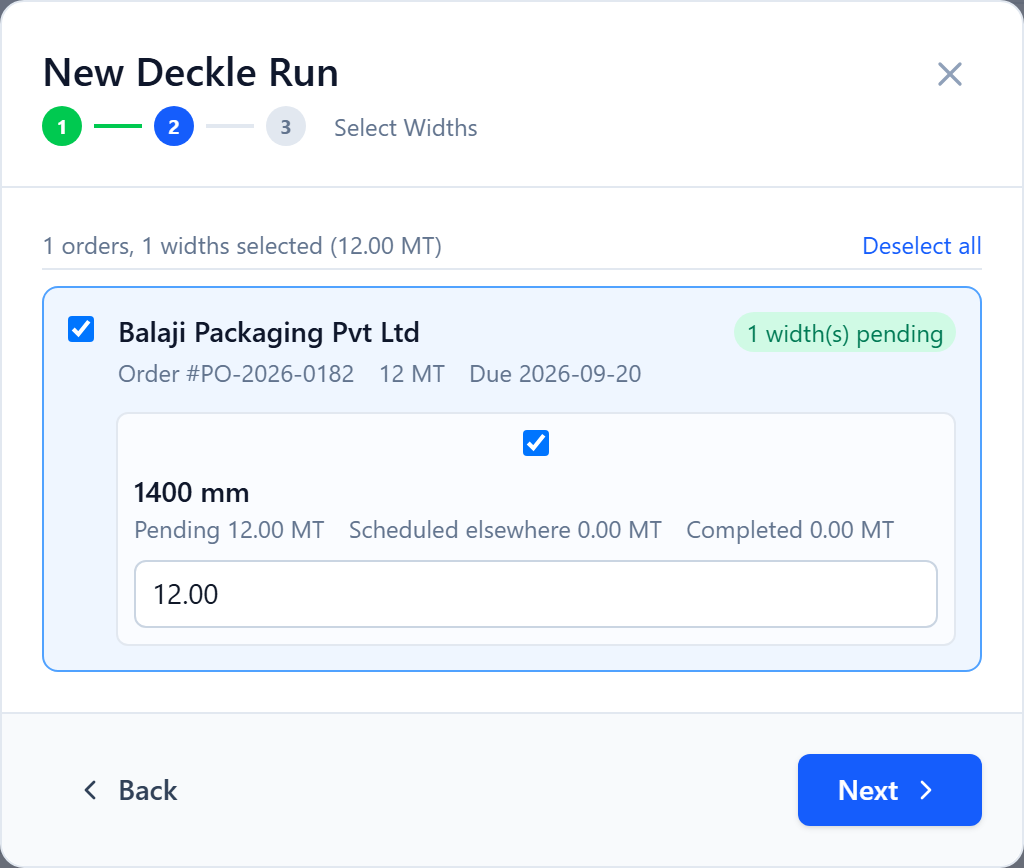
A deckle run is created before optimization — it defines what to cut and on which machine; the optimizer then fills in the patterns. There are two entry points:
- New Run — the general wizard: pick a grade, then pull matching widths from across all confirmed orders. Planners open it from the New run button on their dashboard; Admins also have it in the Runs page header.
- Start Production — the Status Actions on a confirmed order's detail panel; the same idea scoped to one order, with the option to satisfy some demand straight from finished-goods inventory instead of cutting it.
Runs are created by Planners and Admins; the rest of the workflow — optimize, accept, edit patterns — is theirs too. From an order's detail panel, a Planner can also drive its lifecycle (Confirm, Start Production, Mark Complete, Dispatch) even though order data entry is an Admin task.
The New Run Wizard
Machine & Grade
Select Widths
Review & Create
Per-run Overrides
The wizard pre-fills the machine's reel width, available deckle, blade count and average parent-reel weight, and lets you override any of them for this run only — for a narrower parent reel, a reduced blade set, or a different reel weight. Substituting the reel width also tells inventory which stock width to draw from.
Run Status & Tag
Deckle Plus gives each run a short tag. A run's status is one of Draft, Optimizing, Optimized, In Progress, Paused, Completed or Cancelled. It stays in Draft until you optimize it, and Optimized (with an accepted result) until an operator starts it.
Re-create & Reorder
While a run is still Draft or Optimized you can Re-create it — reopen the wizard to change the machine, grade or widths without losing the run's tag or history — or Cancel it. Runs waiting to start can be dragged into order on the Scheduler.
Was this page helpful?
Something unclear or missing? Reach out and we'll update this page.