Dashboards by Role
One Home, Four Roles
The Dashboard — the first screen after signing in — is not the same for everyone. Deckle Plus shows each account a home screen built for what that role actually does, so there is no hunting through menus for the day's work. There are three layouts across the four roles:
- Operator → a floor checklist.
- Planner → a planning queue.
- Admin, Super Admin and Supervisor → an operations overview.
Operator Dashboard
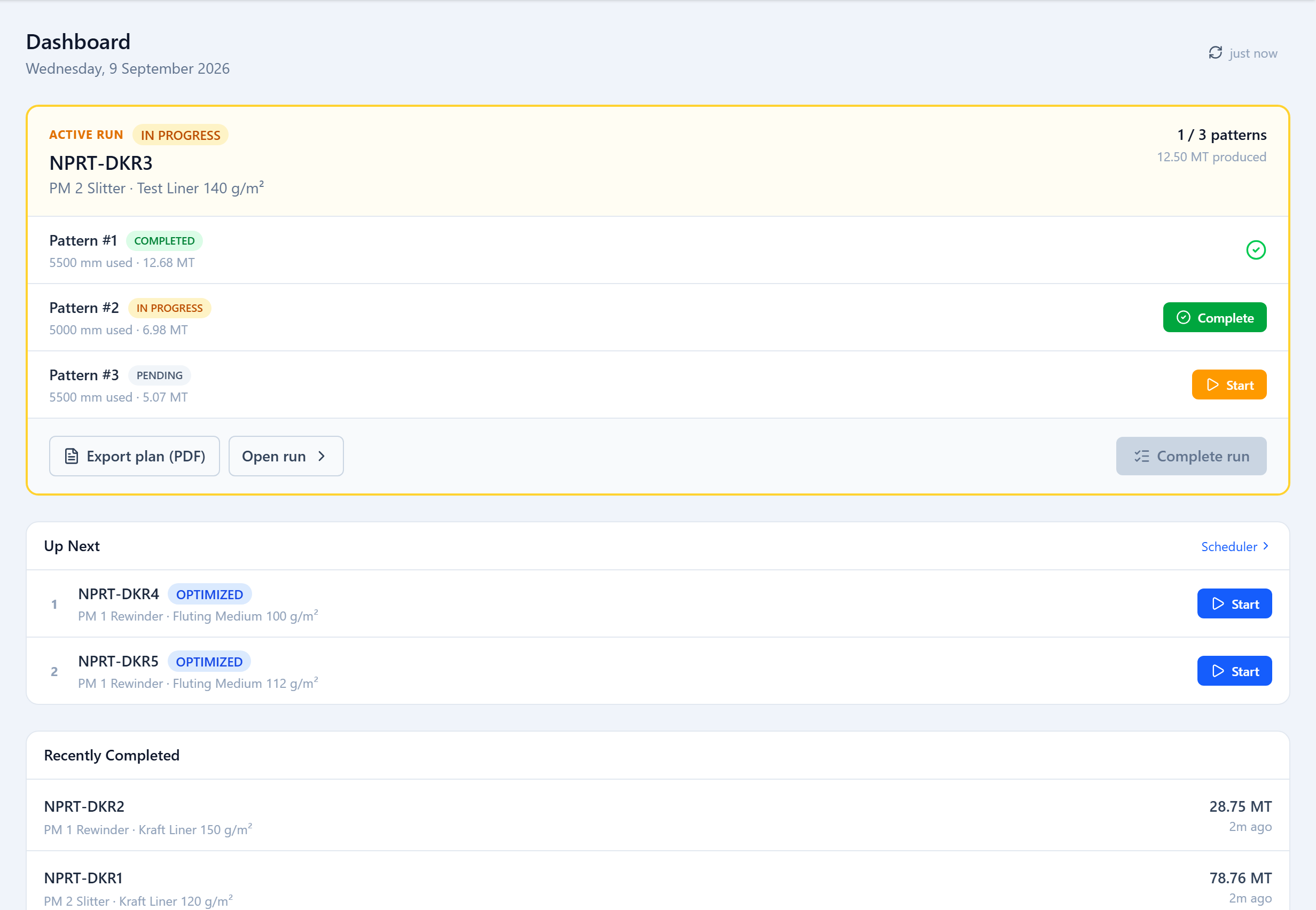
Built for the machine. It leads with the active run and a checklist of its patterns, each with a Start or Complete button, then a Complete run action once they're all done. Below that: an Up Next queue, any paused runs, and recently completed runs. Optimizer controls and pattern editing are deliberately not shown.
Planner Dashboard
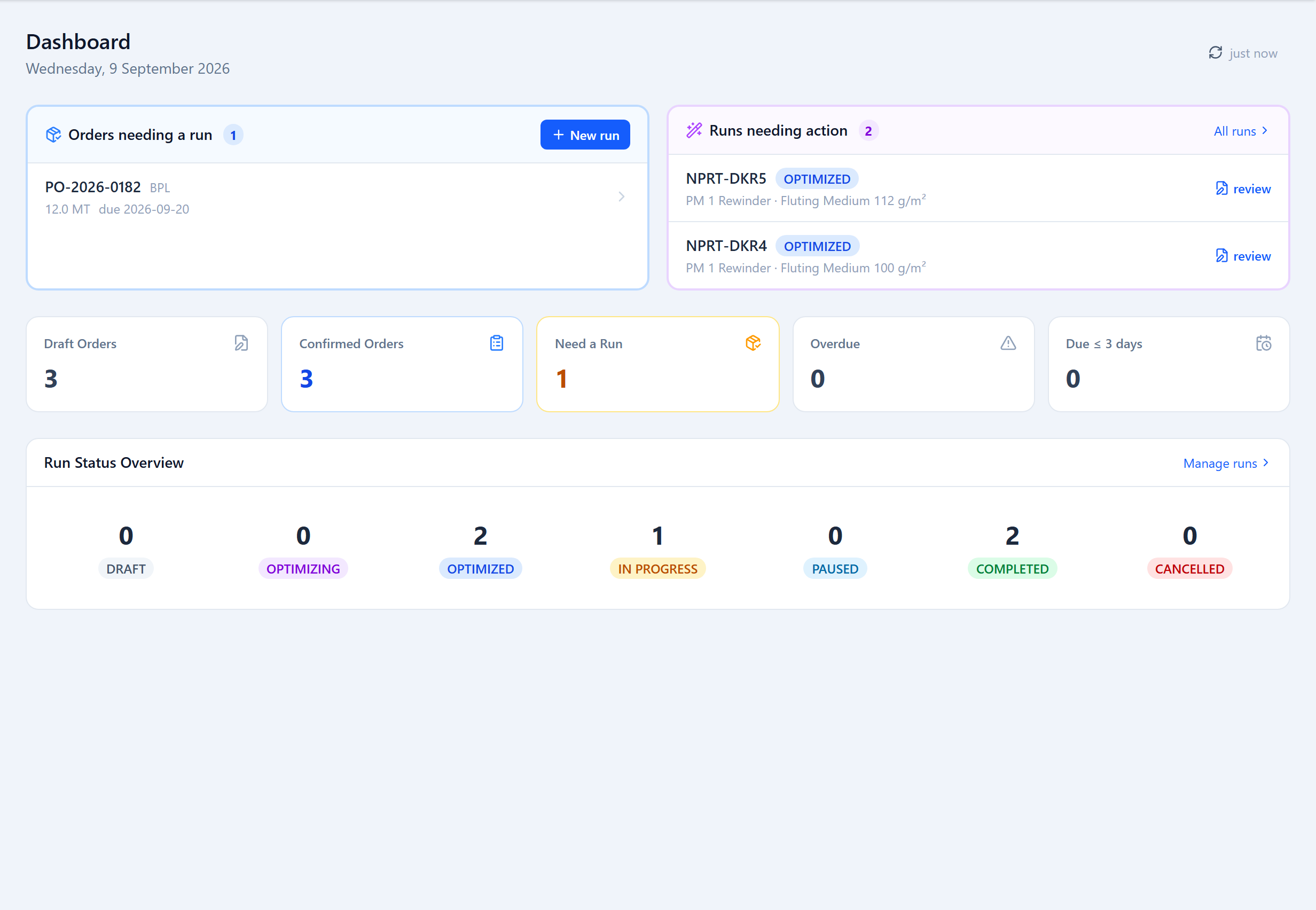
Built for planning the day. Two panels sit at the top: Orders needing a run (confirmed orders not yet on a run, with a New Run button) and Runs needing action (drafts to optimize, optimized runs to review). A KPI strip shows draft and confirmed order counts, how many need a run, and overdue / due-soon counts, and a run-status overview breaks down every run by state.
Admin & Supervisor Dashboard
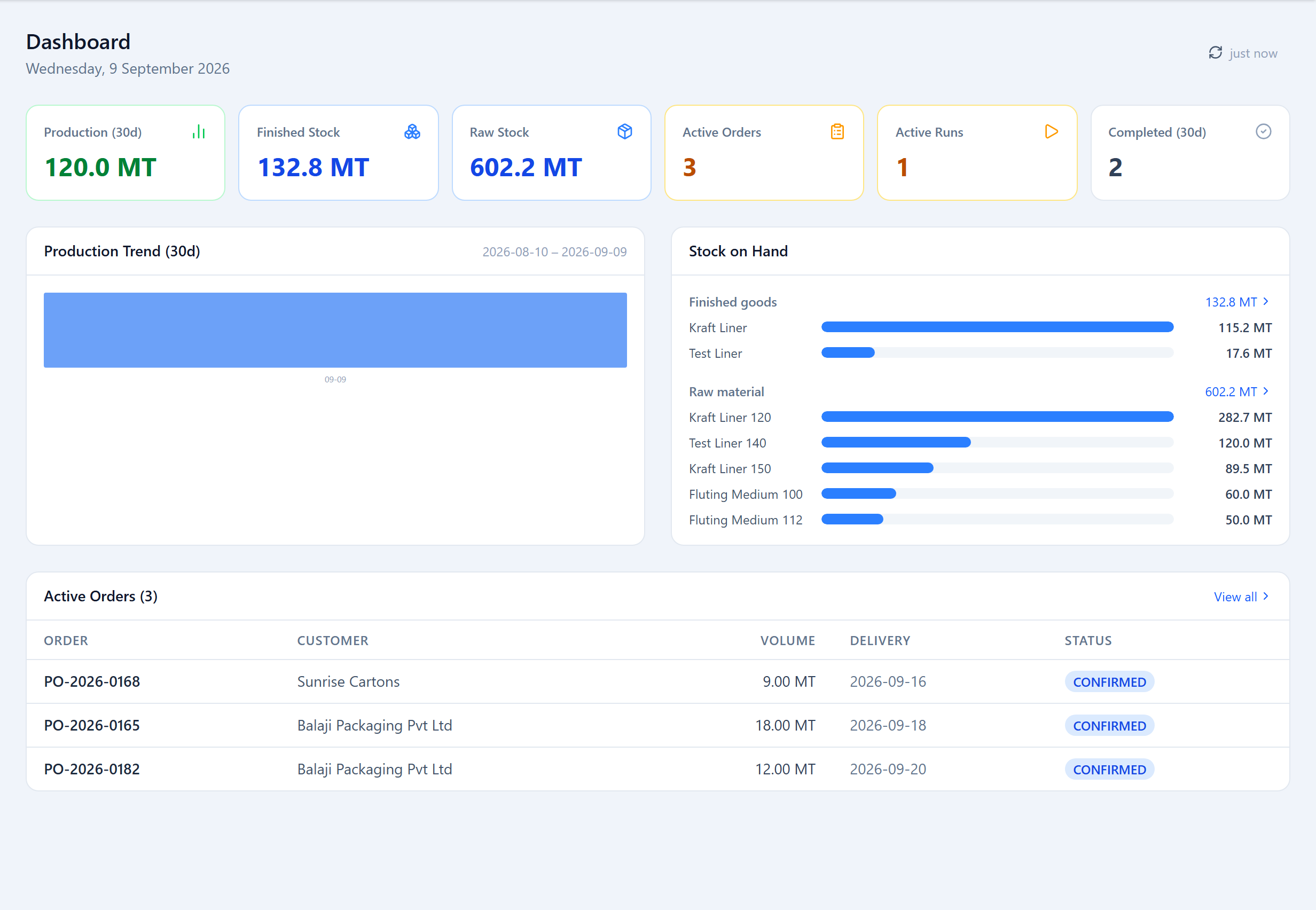
Built for oversight. KPI cards cover 30-day production (MT), finished and raw stock on hand, active orders, active runs and recent completions, above a production-trend chart and a stock-on-hand breakdown. Supervisors get this same view — read-only oversight of the whole operation.
Was this page helpful?
Something unclear or missing? Reach out and we'll update this page.