Customer Setup
Overview
Every order is linked to a customer record, which supplies the name, address and tax details printed on that customer's delivery challans. Customers are managed under Orders → Customers and are created, edited and deleted by an Admin.
Redaction for staff
Staff accounts (Planner, Operator, Supervisor) see customers by their short ID only — names and contact details are hidden. Only Admins see the full record.
Customer Fields
The form is grouped into Basic, Address and Tax Details. Only the company name is required.
| Field | Type | Description |
|---|---|---|
Company Name* key: name | text | As it should appear on challans. |
ID key: identifier | text (≤5) | Short code, e.g. "BPK". Auto-uppercased; used to identify the customer quickly in lists. |
Contact Name key: contactName | text | Primary contact at the customer. |
key: contactEmail | text | Contact email. |
Phone key: contactPhone | text | Contact phone. |
Address Line 1 key: addressLine1 | text | Street / area. |
Address Line 2 key: addressLine2 | text | Landmark, optional. |
City key: city | text | |
State key: state | text | |
Pincode key: pincode | text |
Tax Details & Challans
| Field | Type | Description |
|---|---|---|
GSTIN key: gstin | text | 15-character GST identification number. |
PAN key: pan | text | 10-character PAN. |
State Code key: stateCode | text (2) | GST state code, e.g. 27. |
These fields flow onto every delivery challan raised for the customer, alongside the address, so GST and e-way-bill details never have to be re-keyed at dispatch time. See Closing & Dispatch.
The Customer View
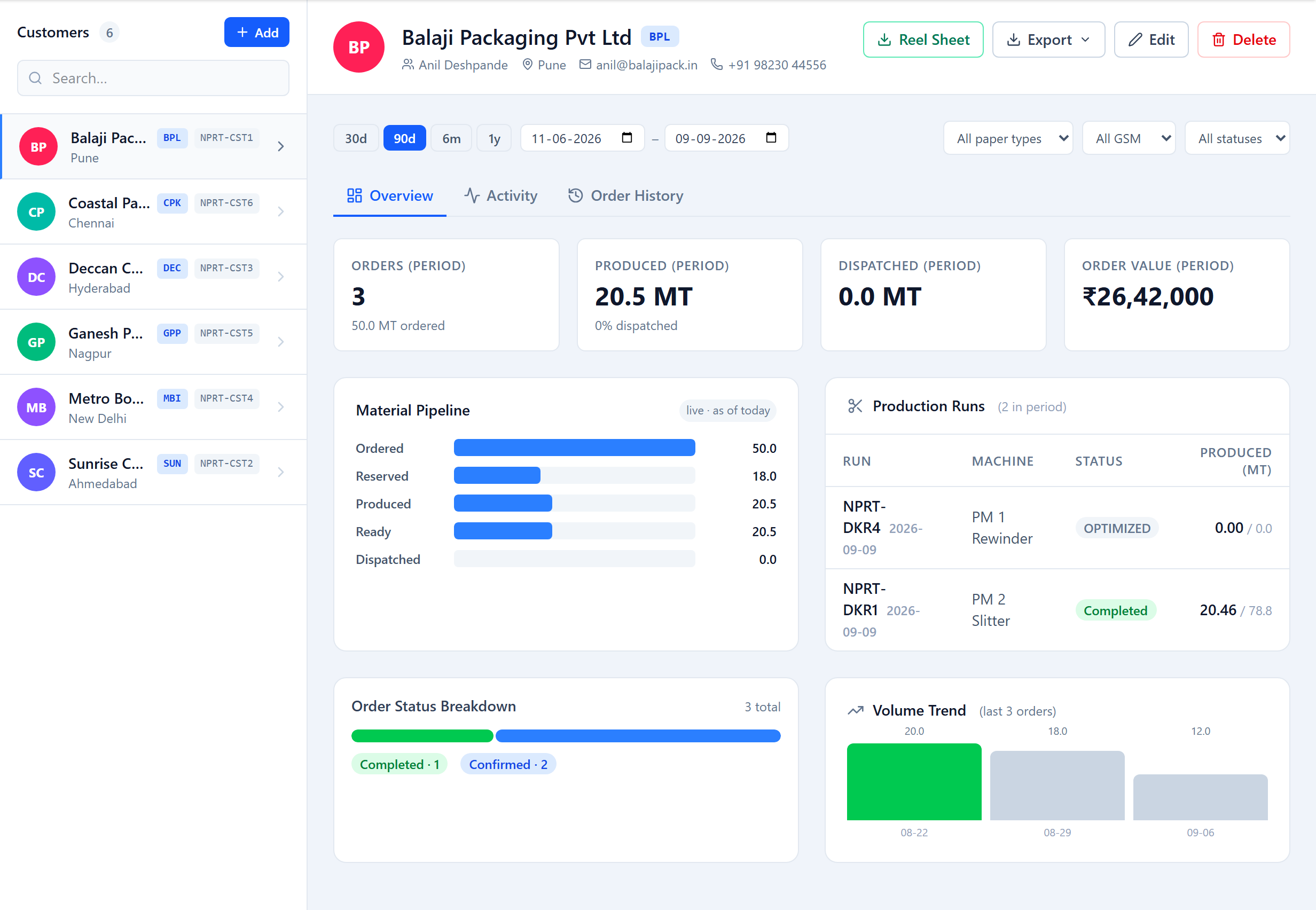
Opening a customer shows more than the record. Its tabs cover:
- Overview — a material pipeline (ordered → reserved → produced → ready → dispatched, in MT), recent production runs, order-status breakdown and a volume trend.
- Activity — order-by-order detail for a chosen date range, exportable to PDF or CSV.
- A Reel Sheet — stock ready to dispatch and stock dispatched today, with optional per-reel ID capture, exportable to PDF or CSV.
Managing Customers
Edit a customer at any time; changes apply to challans raised from then on and do not rewrite challans already issued. Deleting a customer is a soft delete — the customer disappears from active lists but its orders, runs and challans remain intact and reportable.
Was this page helpful?
Something unclear or missing? Reach out and we'll update this page.